
IPTV Parental Controls: A Family Viewing Checklist
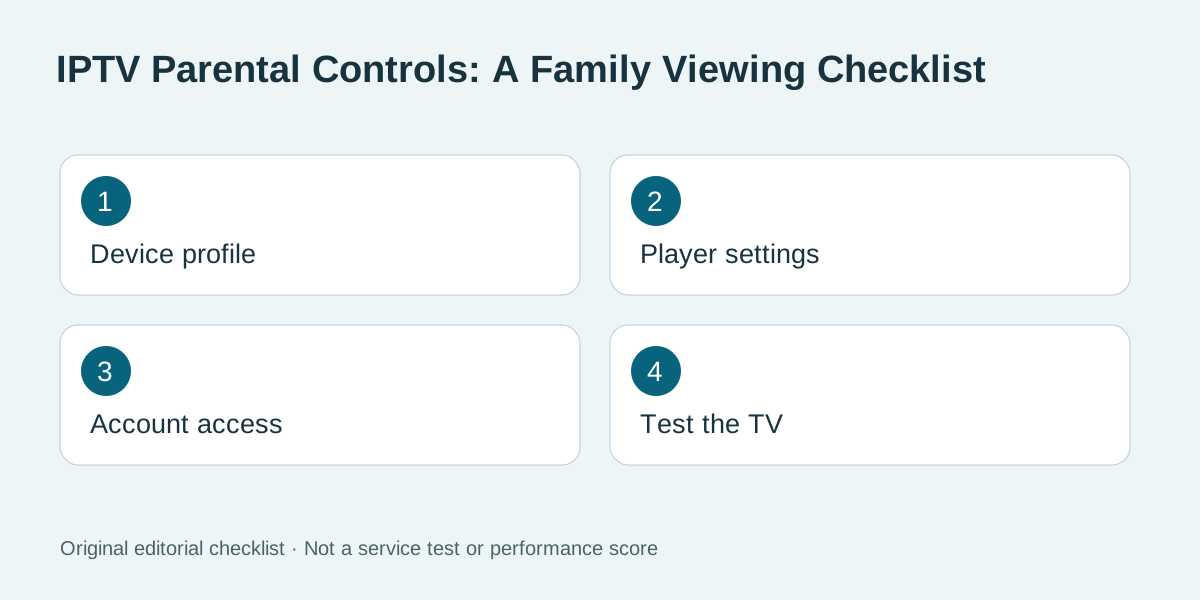
Does a Google TV kids profile filter everything inside an IPTV app?
No automatic filtering should be assumed. Google's own guidance says third-party apps can have separate content and search behavior. Test the player itself.
Families often ask whether an IPTV subscription has a single switch that makes every screen child-safe. It rarely works that simply. Device profiles, player settings, provider account controls and individual apps can apply different rules. This KroozTV guide helps parents in the United States and Canada make a practical plan before adding a service to a shared television. KroozTV sells subscriptions, so this is commercial guidance, not an independent safety certification or a claim that a particular control exists on every setup.
Identify the screen and app first
Write down the exact television or streaming device model, operating system and player app. A setting on one device does not automatically carry over to a second TV or phone. Record who can sign into the device, who can change the app and whether children can leave a restricted profile. If you are buying a new player, ask the provider which supported app runs on your actual model. Do not assume that an Android app can be installed on Roku, a Samsung TV or every Fire TV model. Our Roku versus Fire TV checklist explains how to compare device choices before paying for a longer plan.
Distinguish device controls from app controls
Google's Google TV parental-control documentation describes kids profiles, app choices, locks and screen-time settings where supported. Google also says those controls do not automatically govern content provided inside third-party apps. That distinction matters: a child may be limited to an approved app while that app still has its own catalogue and controls. Review the chosen player and service separately. Check the actual menus on the device instead of assuming the operating-system profile filters every program inside it.
Ask the provider what can actually be restricted
Before purchasing, ask whether the service offers a PIN, category hiding, separate profiles or a way to exclude content groups. Request instructions for the exact player you will use. A vague promise of a family-friendly plan does not show what a parent can control. If the provider cannot document a restriction, plan as though the account can expose its full catalogue to anyone who has access. If you need a specific content rating or independent family profile, make that a buying condition rather than assuming you can add it later. Content rights and regional catalogues can also differ; ask about the current offering in your location.
Control the adult account and payment path
Keep the adult account email, billing login and activation details away from children's shared profiles. A streaming-device purchase PIN is useful only for the transactions it actually covers; it should not be treated as a content filter. Avoid saving payment details in an account that anyone using the remote can enter. Check whether the player remembers the service password or exposes a playlist URL in its settings. Those URLs can contain credentials. If a child can exit a kids profile, set the profile lock according to the platform's instructions and test the exit path yourself.
Test the restrictions on the real TV
After setup, use the remote a child would use. Try leaving the profile, opening the player, browsing categories, searching, changing settings and starting content. Do not stop after seeing a PIN on one screen. Note which action is blocked and which remains available. Repeat the test on each shared device and after a major app update. This is a household check, not a proof that every title is labelled correctly. If the controls are inadequate, choose a different supported player or keep the service on an adult-only device. A trial, if offered and if eligible, can help inspect navigation, but it does not guarantee future catalogue or control behavior.
Keep the family rules visible
Agree on viewing times, shared-device access and what to do when a title or advertisement looks unsuitable. A device's time limit may not account for viewing on a different phone or television. Periodically review app permissions and signed-in devices. If an old device is sold, remove the account or ask support how to rotate the service credentials. Do not share a provider password with a guest merely to make their device work. For the household connection question, review the current plan terms and count simultaneous viewers, not just installed apps.
Frequently asked questions
Does a Google TV kids profile filter everything inside an IPTV app?
No automatic filtering should be assumed. Google's own guidance says third-party apps can have separate content and search behavior. Test the player itself.
Will a device purchase PIN hide adult channels?
Not necessarily. A purchase PIN governs the transactions specified by the device; content restrictions need separate confirmation.
Can one parent setting protect every TV in the house?
Do not assume so. Check each device, profile and player, and repeat the test after updates.
What should I ask KroozTV before buying for a family?
Ask which supported player and device you will use, what category or PIN controls are available, and how to configure them on that setup.
Is a free trial enough to prove family safety?
No. A short trial can help inspect current menus, but it cannot certify every item in a changing catalogue.
Should children have the billing password?
No. Keep billing and service credentials in an adult account and use the platform's own profile locks where available.
Source and current terms
Google's parental controls guide documents Google TV features, not controls inside every third-party app. Confirm your device and player with KroozTV before buying.
Ready to start streaming?
Check current eligibility, device support and checkout terms before choosing a plan.
Check trial eligibility