
IPTV Has Picture but No Sound: Check the Audio Path
Does no sound mean my subscription has expired?
Not necessarily. An audible-output problem can involve equipment, track selection or the player. Confirm account status separately when needed.
If an IPTV video plays but you cannot hear it, check the audio path before buying another subscription. The player, television, external streaming box, soundbar and selected audio track can each affect what reaches the speakers. Identify which part fails, change one setting at a time and keep a note of how to restore it.
Establish what is silent
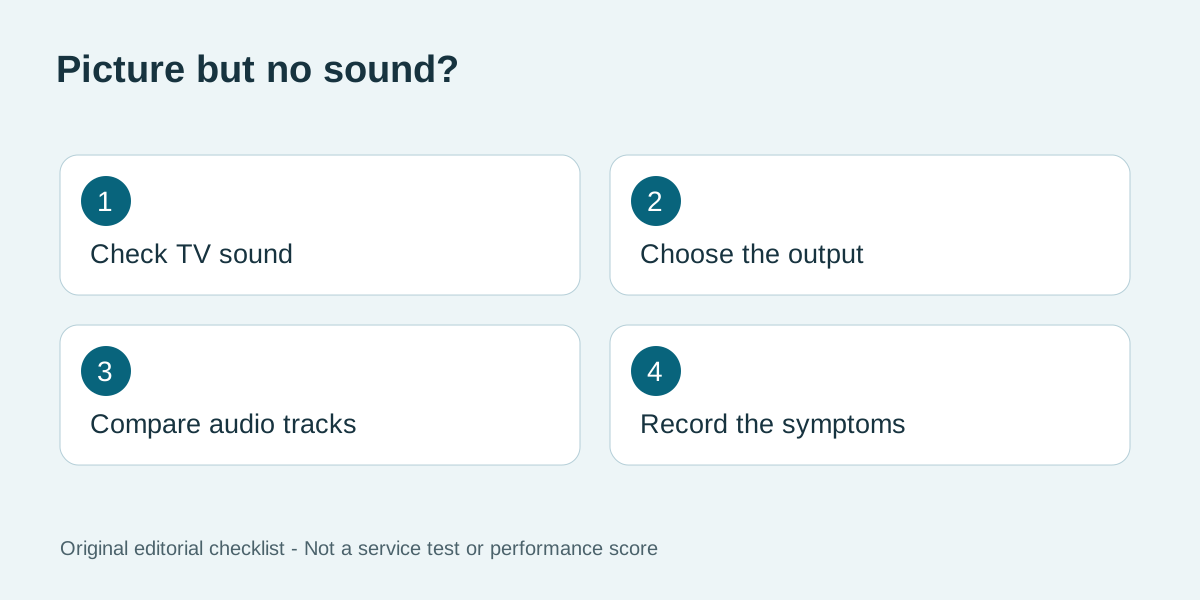
First check the television's mute state and volume, then confirm which remote controls the active speakers. If a soundbar is selected, raising the TV speakers' volume may not affect it. Read the device's current output setting rather than assuming sound follows the screen automatically. Avoid making several changes at once, because a successful result then becomes difficult to explain or reproduce. Compare the behaviour of the TV menu, another permitted app and another item in the same player. Write down exactly what you hear in each case. If every source is silent, begin with the shared output equipment. If one item alone is silent, record its title and selected track for support. Neither observation proves the subscription is invalid.
Map the equipment between the player and your ears
Record whether you use the TV's internal app or an external box. If external equipment is involved, note the HDMI input and whether audio travels through the television, an AV receiver or a soundbar. Include any Bluetooth headphones that may still be selected. A simple written chain is enough; you do not need to understand every audio format to give support a useful description. Use the manufacturer's instructions before reconnecting equipment or changing an HDMI audio setting. Do not force a connector or change service menus. If other people depend on the same setup, note the original settings and agree on a suitable testing time. A change that makes one app work may affect other sources, so test those again before considering the job complete.
Use instructions for your exact device
Apple's Apple TV no-sound guidance addresses video without audio on an Apple TV device. It is an appropriate starting point for that product, not a universal menu sequence for every smart television. Find the support page for your own model and software version when using a different platform. If a guide suggests changing an output format, record the original value and follow the documented steps. Do not assume that a surround-sound label is always better or compatible with every speaker chain. The goal is reliable audible playback on the equipment you own, not the largest number in a menu. Ask the hardware maker about equipment capabilities and the player developer about app-specific settings.
Check the selected track and the scope of the problem
Where the player exposes audio-track controls, inspect the available choices and test only options supplied for the content you are entitled to view. A different track may have a different language or purpose. Record what changes rather than claiming every item supports multiple languages. If the player has no visible track option, ask support whether the feature exists for that version. When only one stream is affected, report it precisely. Include the time and time zone, selected track, device and app version. A screenshot of the relevant menu can help, but remove login details, playlist addresses and personal information. Do not post full account credentials in a public troubleshooting group.
Separate sound failure from buffering
A video that stops repeatedly needs a different investigation from a smoothly moving picture with no audio. Our buffering guide covers connection-related checks. Keep a short record of whether the picture continues, whether sound starts late and whether the problem appears immediately or after a pause. If you are setting up a new player, review the KroozTV installation information and confirm the current supported method. Reinstalling can remove saved settings, so establish how to recover your setup first. Changing subscriptions does not by itself establish that a television or soundbar configuration will be fixed.
Make audio part of your buying test
Before a longer commitment, test normal viewing with the actual speakers and remote. Check speech audibility, volume control and any audio features essential to your household. Use content you are authorized to access. A successful short test is useful evidence for that setup, but it is not a promise about every future stream or device update. Review current KroozTV plans only after the basic setup meets your needs. KroozTV publishes this guide as a seller, not an independent laboratory. Ask the service about account or stream issues and the equipment manufacturer about the hardware path. A clear report helps each party address the part it controls instead of sending you through the same general checklist repeatedly.
Frequently asked questions
Does no sound mean my subscription has expired?
Not necessarily. An audible-output problem can involve equipment, track selection or the player. Confirm account status separately when needed.
Should I buy a different player immediately?
First identify the failing stage and check supported instructions for your existing setup. Another purchase may leave the same hardware issue unresolved.
Why does another app have sound?
It shows that at least one playback path works. It does not prove that every app uses the same track, output format or settings.
Can a soundbar cause this symptom?
The selected output and connected equipment are relevant checks. Diagnose the actual chain before assigning the fault to any one device.
Is changing the audio format always safe?
Follow the manufacturer guidance, record the original value and restore it if needed. Avoid undocumented changes or service menus.
What should I send to support?
Send the device and app version, audio equipment, affected item, timestamp and checks performed. Exclude passwords and full playlist URLs.
Ready to start streaming?
Check current eligibility, device support and checkout terms before choosing a plan.
Check trial eligibility