
IPTV While Traveling Between the USA and Canada: A Setup Checklist
Can I use my IPTV subscription in both the USA and Canada?
Possibly, but the answer depends on the provider's current location and account terms, plus the rights for the content you want. Ask about your exact plan and destination before traveling.
Taking a streaming device on a trip feels simple until a hotel television has no accessible HDMI port, a network requires a browser sign-in, or your subscription has location rules you never checked. This guide is for viewers who live in the United States or Canada and want to plan IPTV access when traveling across the border or within either country. It is a KroozTV commercial guide, not a report that we tested a service in every city or on every hotel network. Service rights, account limits and content availability depend on current terms and location. Use the checklist to ask the right questions before packing a device or paying for a plan.
Start with the right question: is viewing permitted there?
Before discussing apps or cables, ask the subscription seller whether the plan permits access from the place you will visit. A service may have account, household, territory, or simultaneous-use restrictions. Do not assume that because your login works at home it is allowed on a trip. Ask about the country and intended duration, especially when moving between the United States and Canada. Some sports and on-demand rights vary by territory. A channel visible in one place cannot be promised in another, and an old listing is not evidence of current rights. Keep the provider's answer with the plan name and date. If your travel use is a condition of buying, obtain a clear written answer before checkout. This prevents a technical workaround from being mistaken for permission under the subscription terms.
Choose the device based on the accommodation
A phone, tablet, laptop, and streaming stick solve different problems. A hotel TV may have an HDMI input you can select, or the input may be inaccessible. A vacation rental may provide its own streaming device but require you to use someone else's account profile. A laptop gives you more control over network login but may not offer the TV interface you want. List what you will bring and what the accommodation says it provides. If you plan to use a stick, pack the correct power supply and remote; some TV USB ports may not provide reliable power. Check the device and app at home before departure, including the exact login method. Do not enter subscription credentials into an unfamiliar rental device unless you know how to sign out completely before leaving.
Prepare for a captive portal
Hotels, airports and some rental networks make users accept terms or enter a room number in a web page before ordinary internet access works. A phone or laptop can usually show this sign-in screen, while a streaming device may handle it differently. Check the device manufacturer's current instructions for captive portals rather than assuming the IPTV player is broken when the internet is not yet authorized. After joining the network, first load an ordinary website or use the device's connection test. Only then troubleshoot the player. Do not share your subscription password with the hotel's network page. The network password and your service login serve different purposes. If the network requires a method your streaming device cannot complete, ask the accommodation for its supported device process or use your own authorized connection within your data plan.
Treat mobile data as a separate budget
Using a hotspot can bypass an awkward hotel network, but it introduces mobile data limits and variable signal. Confirm your carrier's terms for hotspot use and cross-border roaming before relying on it. A plan that includes data at home may charge differently in another country or slow down after a threshold. Check whether the streaming device can join the hotspot and whether the carrier's network is strong in the place you will watch. Do a short connection test before committing to a long viewing session. Avoid promising yourself a particular number of hours from a generic data estimate; actual consumption depends on stream quality and playback duration. Keep an eye on your carrier's usage meter. If data is expensive or the signal is weak, a local television option or downloaded content from a service that permits downloads may be more dependable.
Keep the account private on shared hardware
Public and rental devices should be treated as temporary. Prefer your own device when possible. If you sign in on a shared television, check for a sign-out control and remove the account before checking out. Do not save the password in a browser on the hotel's computer, and do not leave a playlist URL in a screenshot or notes app that other guests can access. If the service allows device management, review the active devices when you return home. If you cannot confidently remove the account from a shared device, ask support how to revoke access or change credentials. Turning off the TV is not the same as signing out. This preparation protects your subscription and reduces the chance that someone else uses a permitted stream while your household is watching at home.
Understand simultaneous viewing during a trip
Travel can create a real two-location scenario: someone remains at home while another person watches from a different network. Check whether your plan allows the number of concurrent streams and the location arrangement you intend. Two installed apps do not necessarily mean two permitted streams. A trial may have stricter limits than a paid plan. If a connection warning appears while both places are watching, do not repeatedly reset or bypass the account. Confirm the plan and ask the provider about the specific situation. If the service limits access to a household or region, respect that rule and choose an appropriate option. The correct decision may be to pause viewing on one device, change the plan if an allowed option exists, or use another licensed service for the trip.
Plan around time zones and live events
When traveling from one coast to another or crossing the border, the local time of a live event may differ from what you expect. Check the event organizer's schedule in the destination time zone and confirm whether the specific feed is available in that region. Do not infer that a channel name guarantees a particular game, league, or replay. If catch-up or recording matters, ask whether the current plan and player support it, how long content remains available, and whether the rights apply in the destination. Build a fallback plan for an important event rather than assuming the travel setup will work for the first time minutes before kickoff. The test should include the network, device, login, and the relevant content question. A generic statement that 'sports are included' does not answer all four.
Make your first network test diagnostic
Once you arrive, test in stages. Confirm that the device joins the network and an ordinary internet service loads. Then open the player and verify the account signs in. Finally, try a noncritical stream or category before the content you most care about. If the player loads but a stream stalls, note the time, network type and error. Try one simple comparison, such as another app on the same network or the same player on an authorized hotspot. This helps distinguish network access from an app issue or service issue. Avoid changing several settings at once; doing so makes the outcome hard to interpret. If support is needed, send the device model, app version, location, connection type and error message privately, without posting the full account details.
Compare the total travel cost
The service subscription is only one line. Include any extra connection allowance, mobile roaming or hotspot costs, player licence, adapter or streaming device, and accommodation network charges. A cheap monthly offer may become expensive if it requires buying hardware you will use once. On the other hand, a device you already own may be valuable if it works reliably on the networks you expect. Compare like with like: the same term, connection count, and cancellation terms. If you are purchasing mainly for one trip, ask whether a short plan fits and when it begins. Read checkout terms to determine whether the charge recurs and how to cancel. Currency conversion may apply to US or Canadian customers paying in the other currency. Calculate the actual checkout amount rather than a headline price.
A packing and account checklist
Before leaving, write down the device, remote, power supply, HDMI adapter if needed, the official app name, the subscription support link, and the account's expiration date. Check that software is current and the device can sign in at home. Confirm with the provider that the destination and planned simultaneous use are permitted. Save the relevant order number and support contact privately. At arrival, verify network access before opening the player. At departure, sign out of any device you do not own and check that your credentials are not saved. This is deliberately short enough to use in a real packing routine. The more important part is not carrying more accessories; it is knowing which rule or technical step would stop your particular trip.
Decide before the trip, not at the checkout screen
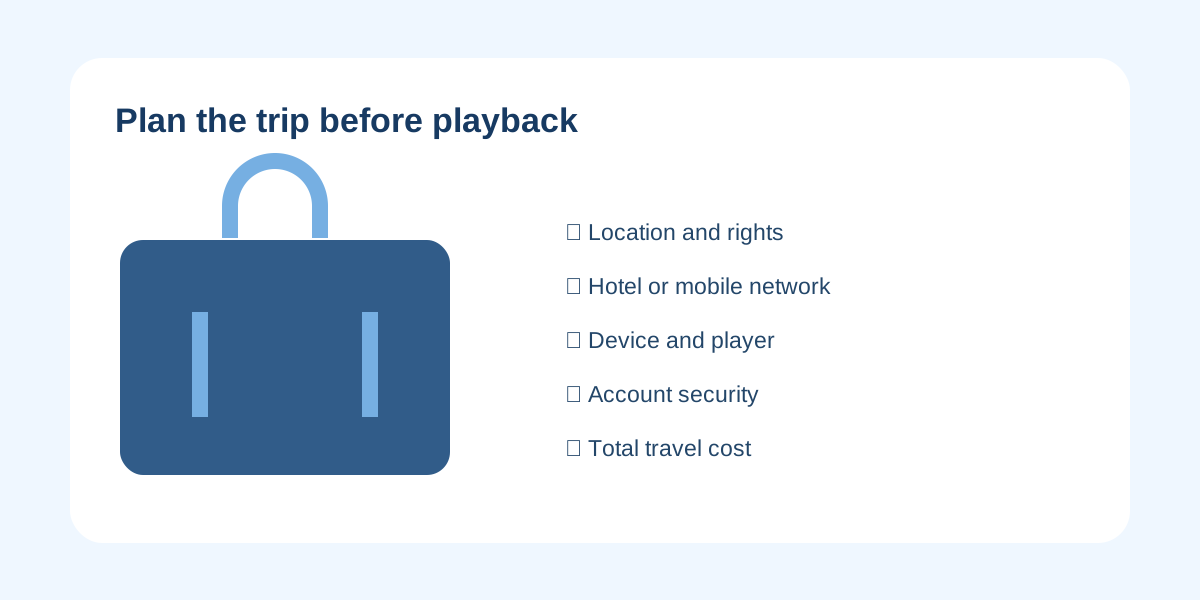
Travel viewing is a combination of permission, content rights, hardware, network and cost. KroozTV's current pricing, free-trial eligibility and setup pages can help you compare the service side of that equation, but the provider must confirm the exact rules that apply to your plan and destination. Test the device and network with a noncritical session where possible. Do not buy a long term or promise yourself an event based only on a generic catalogue description. A small amount of planning gives you a much clearer answer than a last-minute installation attempt in a hotel room.
Frequently asked questions
Can I use my IPTV subscription in both the USA and Canada?
Possibly, but the answer depends on the provider's current location and account terms, plus the rights for the content you want. Ask about your exact plan and destination before traveling.
Will hotel Wi-Fi work with a streaming stick?
It depends on the network's sign-in method, signal and device support. Check the manufacturer's captive-portal guidance and test ordinary internet access first. Do not treat a login page failure as an IPTV problem.
Does a VPN make content available in another country?
Do not assume so. A VPN does not grant content rights or change the provider's account terms. Follow the service's location rules and check the official availability of the program you want.
Can someone watch at home while I stream on a trip?
Only if the plan and provider rules permit that simultaneous, two-location use. Confirm the connection allowance and any household or territory conditions. Two installed devices alone do not answer the question.
Should I use a hotel TV's built-in player?
Use caution on a shared or rental device. Make sure you know how to remove credentials before departure. Bringing a device you control may be simpler, provided the TV has an accessible input and the network works.
What should I do when the app opens but video will not play?
Check network authorization, app login and the particular stream in that order. Record the device, network type, time and error. Contact official support privately if the problem remains.
Source and current terms
For device and travel setup, consult Roku's official travel-network guidance, Amazon's Fire TV Wi-Fi help, and the seller's current terms. These sources do not verify any KroozTV content catalogue or service performance.
Compare current KroozTV plans and read the setup page before ordering. This is a commercial KroozTV guide.
Ready to start streaming?
Check current eligibility, device support and checkout terms before choosing a plan.
Check trial eligibility