
IPTV Remote Control Checklist: Test Everyday TV Use Before Subscribing
What remote-control checks matter before buying IPTV?
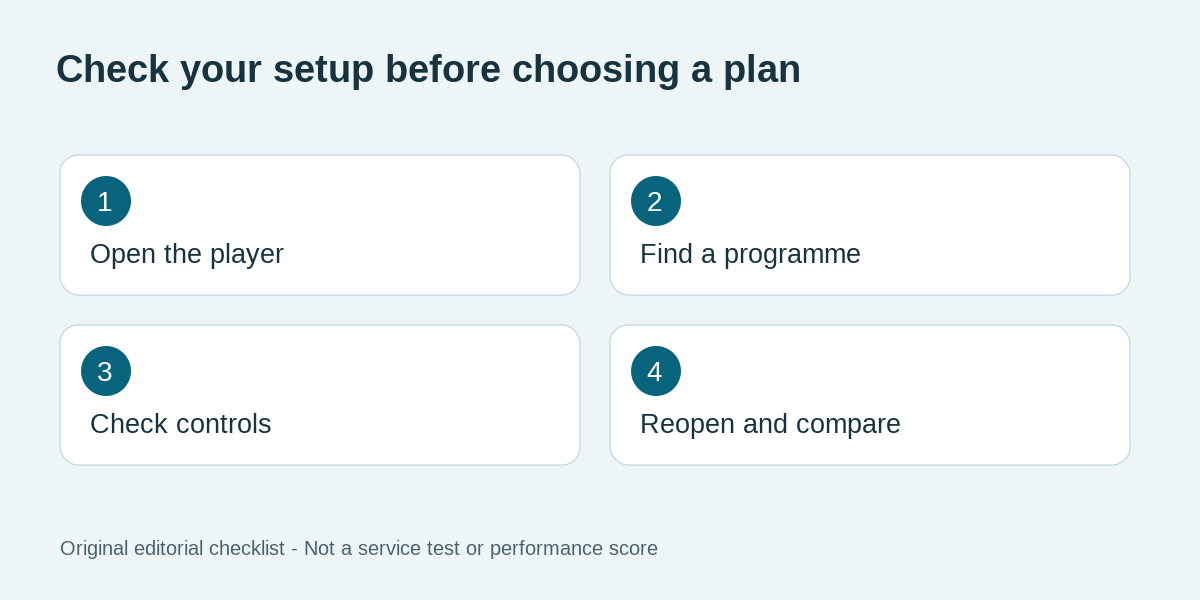
Test opening the player, finding a programme, returning to the guide, stopping playback and using the audio or caption controls you need.
A television service can play a programme successfully and still feel awkward to use with your remote. Before subscribing, test the everyday actions your household needs: opening the player, finding a channel, returning to the guide and stopping playback. This practical checklist helps you compare usability on the television itself instead of judging the experience from a phone screen.
Start with the remote you will actually use
Write down the television or streaming-device model, player name and remote type. Check that the player supports the device and that the trial permits your intended setup. A Bluetooth remote, an infrared remote and a phone-based controller can behave differently. Use the normal television remote for the test if that is what the household expects to use after purchase. KroozTV sells subscriptions. Review the current trial information and ask about your exact device before ordering. A subscription does not automatically add missing buttons or accessibility features to a third-party player. Confirm which features belong to the player, the device and the service rather than treating them as one product.
Test the route from the home screen to playback
Begin at the device's home screen, open the player and navigate to a programme you are entitled to watch. Count the steps that cause confusion rather than aiming for an arbitrary speed target. Check whether the highlighted item is visible from your normal seat and whether directional buttons move predictably through menus. A screen designed for touch can be difficult to use with directional controls even when video playback works. Press Back once and observe where you land. Try returning to the guide without accidentally leaving the player. Reopen the programme and stop it using the app's documented control. If a button behaves unexpectedly, check the player instructions before changing device-wide settings. Record the action and result so support can reproduce the issue.
Check favourites, search and text entry
If the player supports favourites, add a channel, leave the list and return to it. Ask another household member to find it using only the remote. If you use search, try a short title and see whether entering text is practical. Voice input is a device or app capability, not something to assume every subscription includes. Note whether the player offers a supported keyboard alternative and whether you are comfortable using it. On Google TV, Google's Apps only mode guidance explains a way to simplify the home screen, with tradeoffs: Search and Google Assistant are unavailable in that mode, and apps can still show their own recommendations. Check those consequences before changing the setting. It changes the Google TV experience; it does not redesign your IPTV player's menus.
Try captions and audio without leaving the programme
Open the available playback controls and find the audio and subtitle options. Check whether the remote can select a track and close the menu without ending playback. Availability depends on the programme and player. Test a second suitable title if the option is missing on the first. Do not assume an absent track can be added by buying a longer subscription. If captions are present but appear at the wrong time, our subtitle timing checklist addresses that separate problem. For pictures without audio, use the sound output guide. Keeping navigation, caption availability and audio output as separate observations makes the support request clearer.
Check the experience after reopening the player
Close and reopen the app using its normal controls. See whether it returns to a useful screen and whether the household can find the saved favourites again. If the device sleeps, wake it and repeat the route to playback. Avoid assuming that an unfamiliar screen means the subscription expired; inspect the message and confirm the active input and app first. Choose a plan after resolving the controls that matter to your household. Review the current KroozTV plan details and connection allowance, then confirm any unanswered device questions. A working trial on your own TV is useful evidence of that particular setup, but it is not a guarantee that all players, remotes or programmes behave identically.
Frequently asked questions
What remote-control checks matter before buying IPTV?
Test opening the player, finding a programme, returning to the guide, stopping playback and using the audio or caption controls you need.
Will an IPTV subscription fix missing remote buttons?
Do not assume it will. Remote and navigation support depend on the device and player as well as their settings.
Is testing on a phone enough for a television setup?
A phone test does not confirm television navigation. Repeat the important steps on the TV with its normal remote.
Does Apps only mode simplify every IPTV menu?
It changes the Google TV home-screen experience. Individual apps keep their own interfaces and may still show recommendations.
Should every channel have subtitle and audio choices?
No universal availability is established by this checklist. Check the actual programme, track and player options before relying on them.
What should I report if Back closes the player?
Provide the device model, player version, remote type, screen you started from and the exact button sequence, without sharing login credentials publicly.
Ready to start streaming?
Check current eligibility, device support and checkout terms before choosing a plan.
Check trial eligibility